Posts

Showing posts with the label Windows

How to Use-Install Theme In Rainmeter
Image
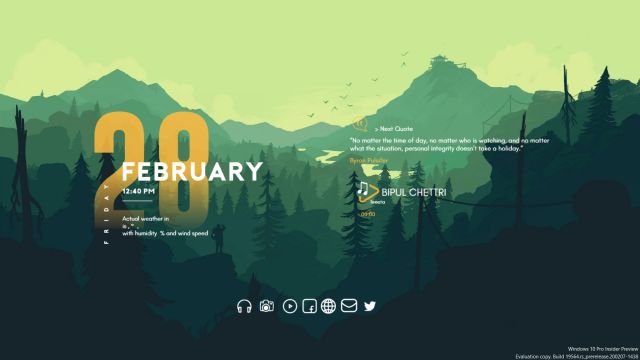
Installing Skin/Theme Using Rainmeter in Windows  Note: To Use Skin Pack first Download and  install Rainmeter  Rainmeter is Simple Desktop Customization Tool Which Allows to modify the look of desktop. Below are the sample cusomized skin of rainmeter. most of them are ready made and only need few click to apply. If you are someone who loves customizing the way their desktop look then rainmeter is must thing to try. User can remove/ add small widgets as per their requirements. There are two ways to start using rainmeter in windows after installation. Download Skin of rainmeter from Internet. Downloaded file is either .rmskin or .zip file. Here is instruction on how to deal with that files  (1) In case you have .rmskin file If the skin is in the .rmskin format. Double-click the .rmskin file, click Install. (.rmskin) is the rainmeter skin format. It will auto apply the theme. (2) In case you have .zip file Unzip the downloaded Rainmeter ...
How Do I Update Drivers in Windows For Pc/Laptop Free ?

Image
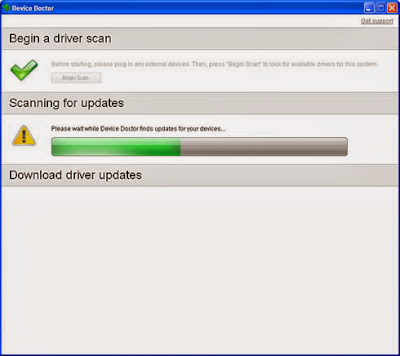
Drivers in your machine need to be updated for better performance of the system.Plus it increases the stability of system There are the various programs to update your drivers.But most are the paid software. Here we have listed free utility program that updates your drivers of  The software is " device doctor " Device Doctor is a  free  Windows application that scans your computer hardware and checks to see if there are new driver updates available for your devices. It also locates drivers for "unidentified devices" in the Windows Device Manager. Just click on 'Begin Scan' to detect your hardware; Device Doctor queries our manufacturer driver database and immediately fetches the  correct driver files  for your computer. Initial Launch When you first start Device Doctor you just have to press  Begin scan  to get started: Scanning for Updates The hardware scan is very quick and completes in seconds: Scan Results After the ...

How to install rainmeter (with screenshots)

Image
To Install Any Theme You need Two Files (1) Rainmeter (2) SkinPack Here is Step By Step Guide (With screenshots) To install Rainmeter. To install Rain meter Follow This Steps : (1) Download Rainmeter  From www.rainmeter.net  It will look lile screenshot Below .  (2) Click on Download Button 3.0 Beta (3) After Downloading Run Setup (4) Click On Standard Installation  (5) Do the same as Screenshot below (6) Finally Click On Install Button.  You are Done.  Now You need Skin/Skinpack/.rmskin/.zip file of your theme.  Download some beautiful Skinpack from below.   Download ironman-SHIELD OS THEME Legacy:Minimalism Evil Windows 7 Theme-Rainmeter Skin Legacy:Minimalism Blue Windows 7 Theme-Rainmeter Skin Prometheus Windows 7 Theme-Rainmeter Skin HALO 4 Windows 7 Theme-Rainmeter Skin Ultimate Batman Customization Windows 7 Theme-Rainmeter Skin Avengers SHIELD-OS-Skin pack Windows 7 ...

Windows 7 VPN setup-With Easy Steps

Image
[Update May-2021: Many Free software and browser extension are now available (Free and paid). It makes the process lot more easier.] This is Manual way for windows 7. If you are interested in that way here it is  Setting up PublicVPN access under Windows 7 is simple. The following instructions go step–by–step through the creation process. Be sure that you run Windows Update before setting up your VPN connection. Open the Start Menu: First, click on the Start Menu and type “VPN” into the search box. Click on the “Set up a virtual private network (VPN) connection.” Enter the server information Now, enter the server information as below. In the text box labelled ‘Internet address’ type ‘gateway.publicvpn.net’. This is the Internet address of the PublicVPN.com servers. In the text box labelled ‘Destination name’ type ‘PublicVPN.com PPTP’. This is the name of the connection, and will show up in the “Connect to a network” screen when we’re done. Lastly,...